

 About Us
Prowler performs security scans within the subscription scope in Azure. To execute checks, it requires appropriate permissions to access the subscription and retrieve necessary metadata. By default, Prowler operates multi-subscription, scanning all subscriptions it has permission to list. If permissions are granted for only a single subscription, Prowler will limit scans to that subscription.Documentation Index
Fetch the complete documentation index at: https://prowler-prowler-1359-docs-improve-developer-documentation-f.mintlify.app/llms.txt
Use this file to discover all available pages before exploring further.
Configuring Specific Subscription Scans in Prowler
Additionally, Prowler supports restricting scans to specific subscriptions by passing a set of subscription IDs as an input argument. To configure this limitation, use the appropriate command options:Assigning Permissions for Subscription Scans
Check the Authentication > Subscription Scope Permissions guide for more information on how to assign permissions for subscription scans.Recommendation for Managing Multiple Subscriptions
Scanning multiple subscriptions requires creating and assigning roles for each, which can be a time-consuming process. To streamline subscription management and auditing, use management groups in Azure. This approach allows Prowler to efficiently organize and audit multiple subscriptions collectively.-
Create a Management Group: Follow the official guide to create a new management group.
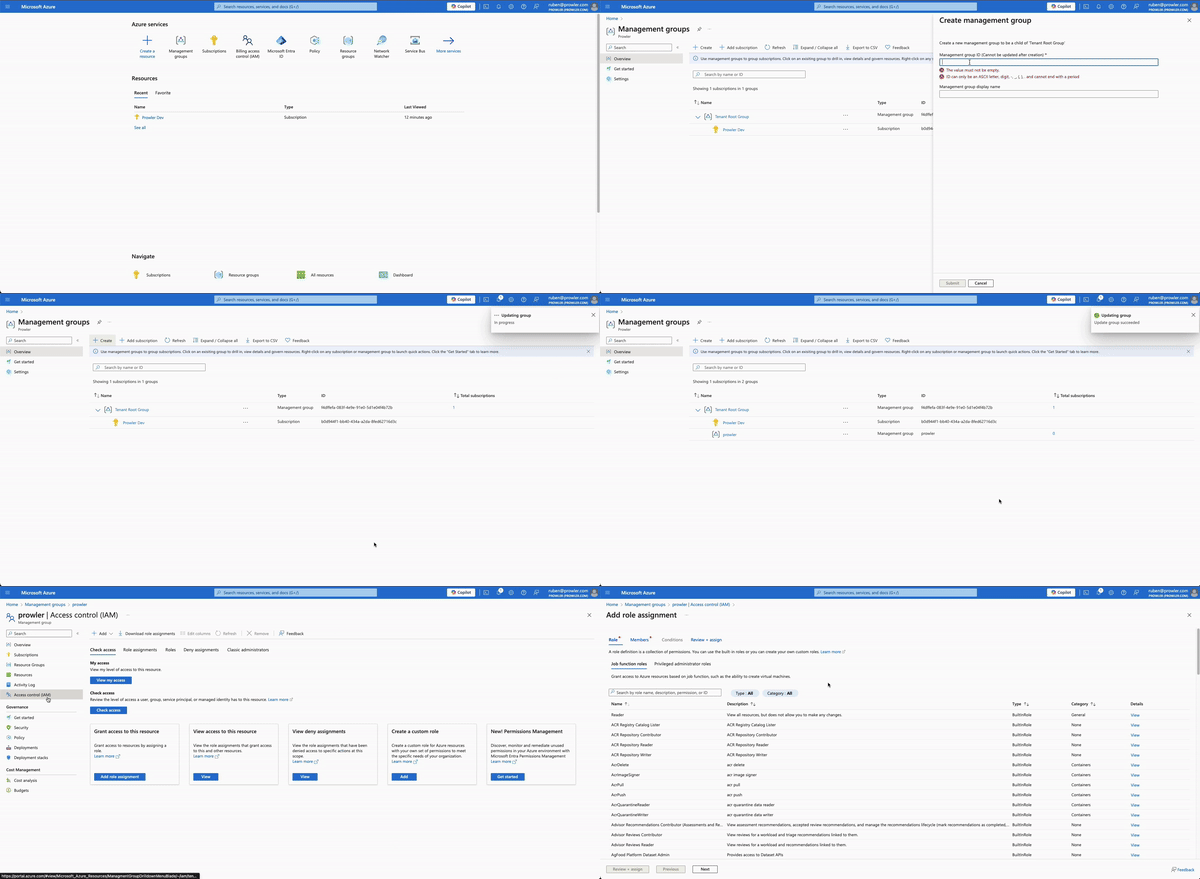
- Assign Roles: Assign necessary roles to the management group, similar to the role assignment process. Role assignment should be done at the management group level instead of per subscription.
-
Add Subscriptions: Add all subscriptions you want to audit to the newly created management group.
