

 About Us
Prowler requires AWS credentials to function properly. Authentication is available through the following methods:Documentation Index
Fetch the complete documentation index at: https://prowler-prowler-1359-docs-improve-developer-documentation-f.mintlify.app/llms.txt
Use this file to discover all available pages before exploring further.
- Static Credentials
- Assumed Role
sts:AssumeRole. The labels differ between Prowler Cloud and self-hosted Prowler App, but both map to the same underlying credential types:
- AWS SDK Default (shown as “Prowler Cloud will assume your IAM role” in Prowler Cloud and “AWS SDK Default” in self-hosted Prowler App): Prowler uses the credentials already available to the API and worker containers through the AWS SDK default credential chain. This is the default in Prowler Cloud and requires extra configuration in self-hosted Prowler App (see Configuring AWS SDK Default for Self-Hosted Prowler App).
- Access & Secret Key: You paste an IAM user’s
AWS_ACCESS_KEY_ID,AWS_SECRET_ACCESS_KEY, and optionallyAWS_SESSION_TOKENinto the form. Prowler uses those keys to callsts:AssumeRole.
Required Permissions
To ensure full functionality, attach the following AWS managed policies to the designated user or role:arn:aws:iam::aws:policy/SecurityAuditarn:aws:iam::aws:policy/job-function/ViewOnlyAccess
Additional Permissions
For certain checks, additional read-only permissions are required. Attach the following custom policy to your role: prowler-additions-policy.jsonAssume Role (Recommended)
This method grants permanent access and is the recommended setup for production environments.- CloudFormation
- Terraform
-
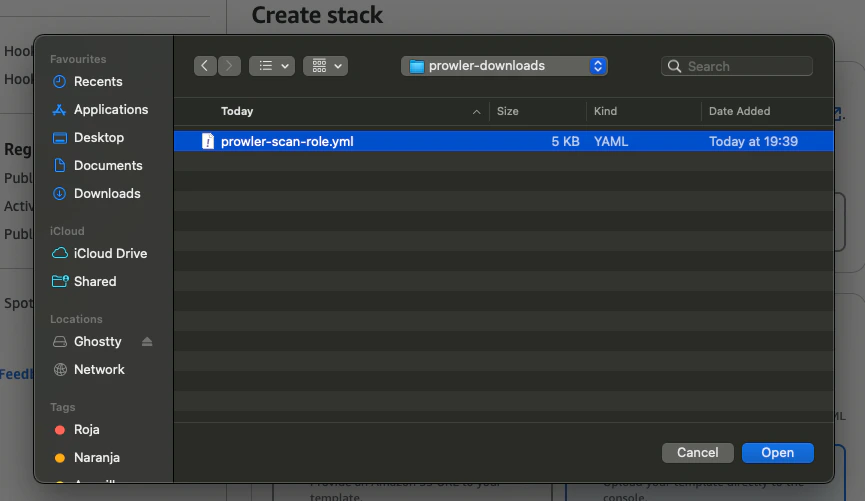
Download the Prowler Scan Role Template
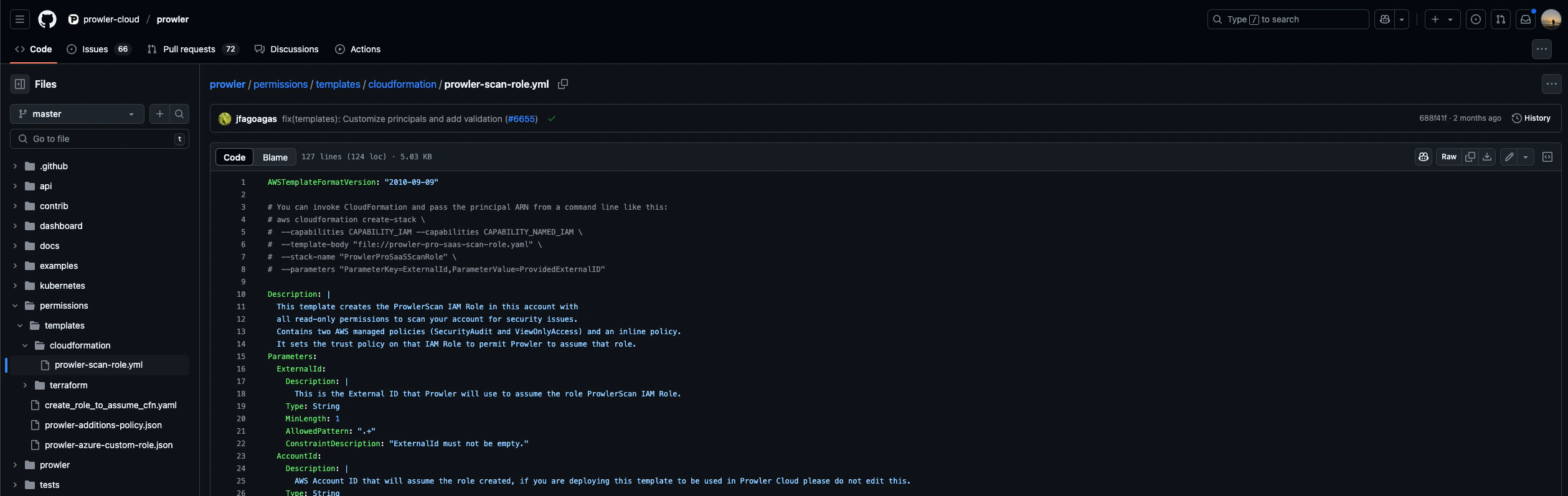
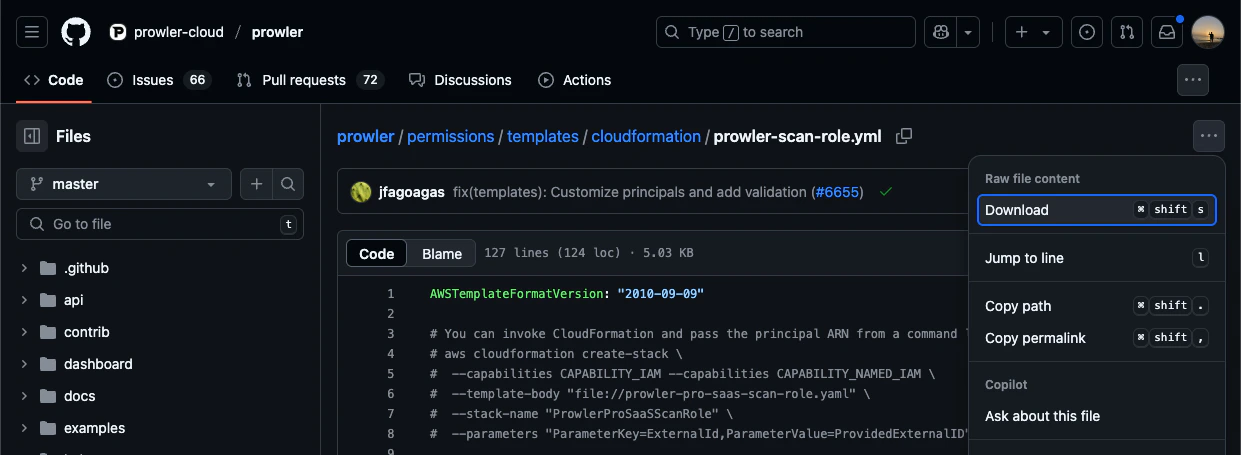
-
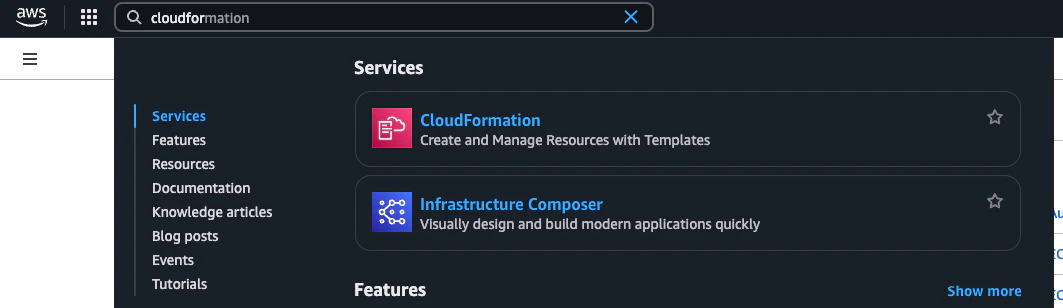
Open the AWS Console, search for CloudFormation
-
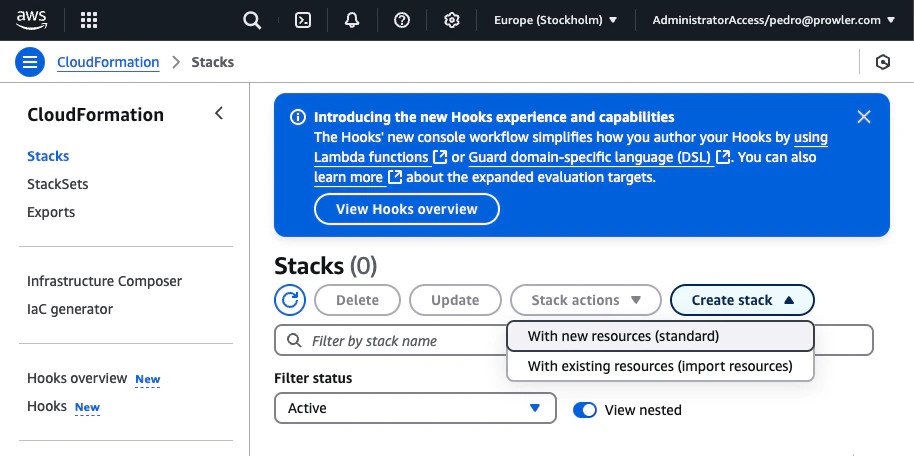
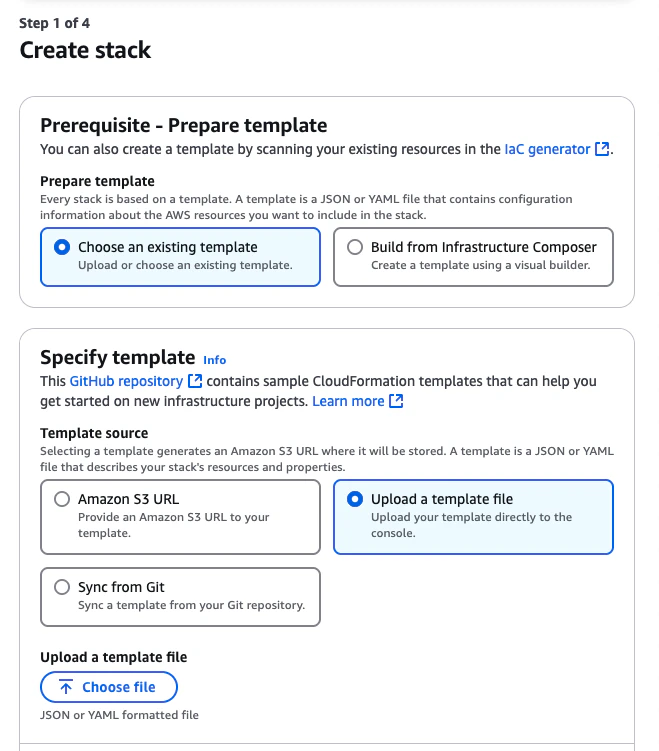
Go to Stacks and click “Create stack” > “With new resources (standard)”
-
In Specify Template, choose “Upload a template file” and select the downloaded file
-
Click “Next”, provide a stack name and the External ID shown in the Prowler Cloud setup screen
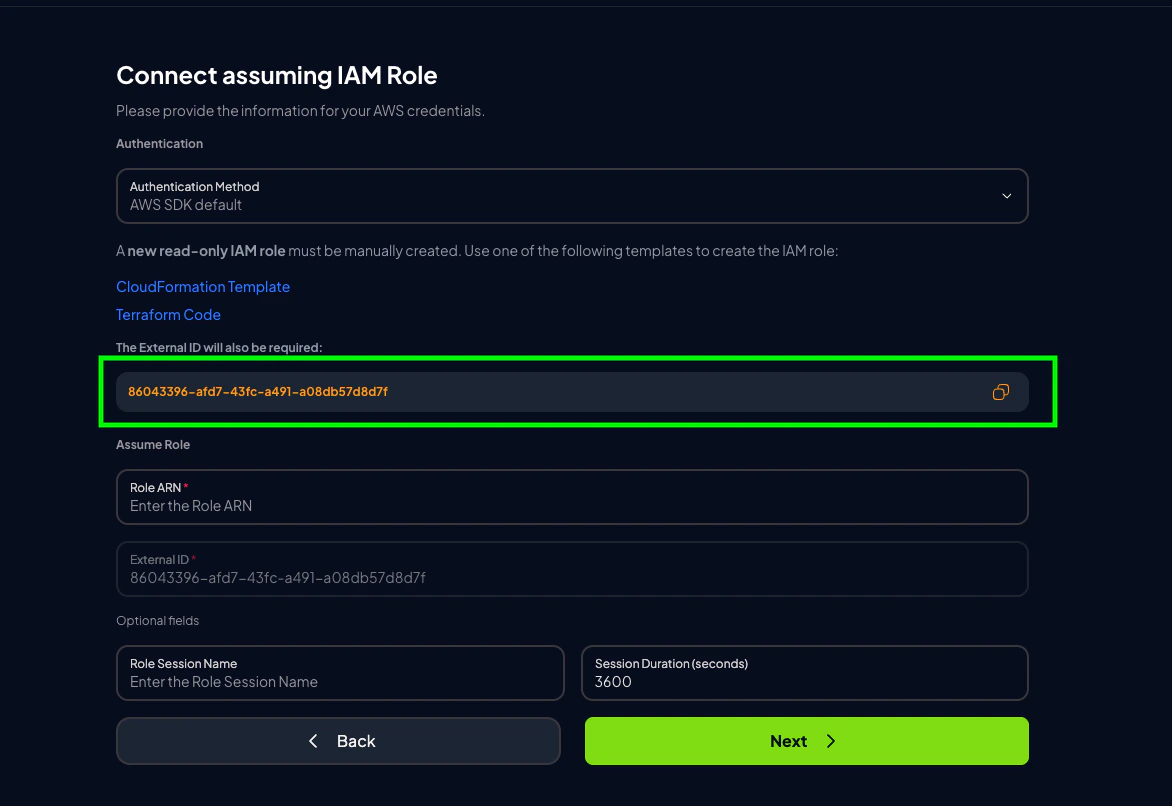
 An External ID is required when assuming the ProwlerScan role to prevent the confused deputy problem.
 -
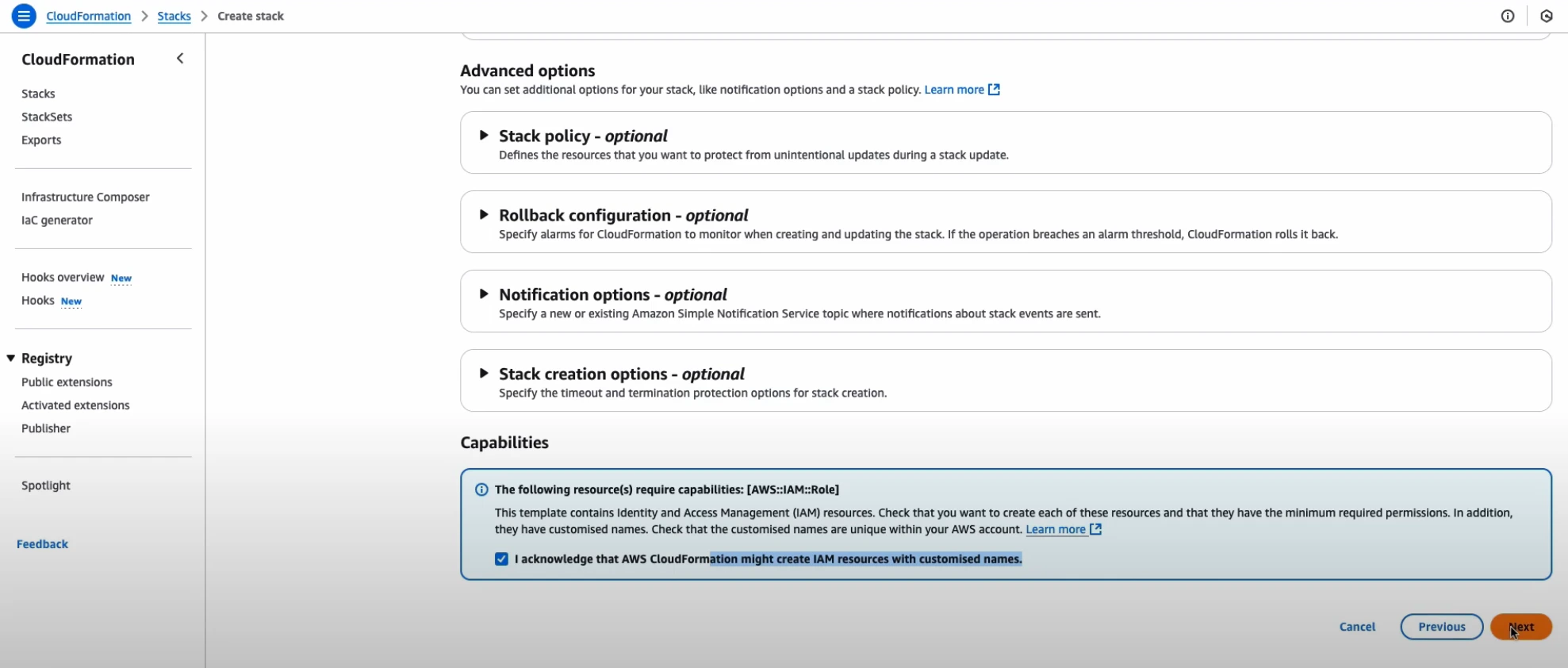
Acknowledge the IAM resource creation warning and proceed
-
Click “Submit” to deploy the stack
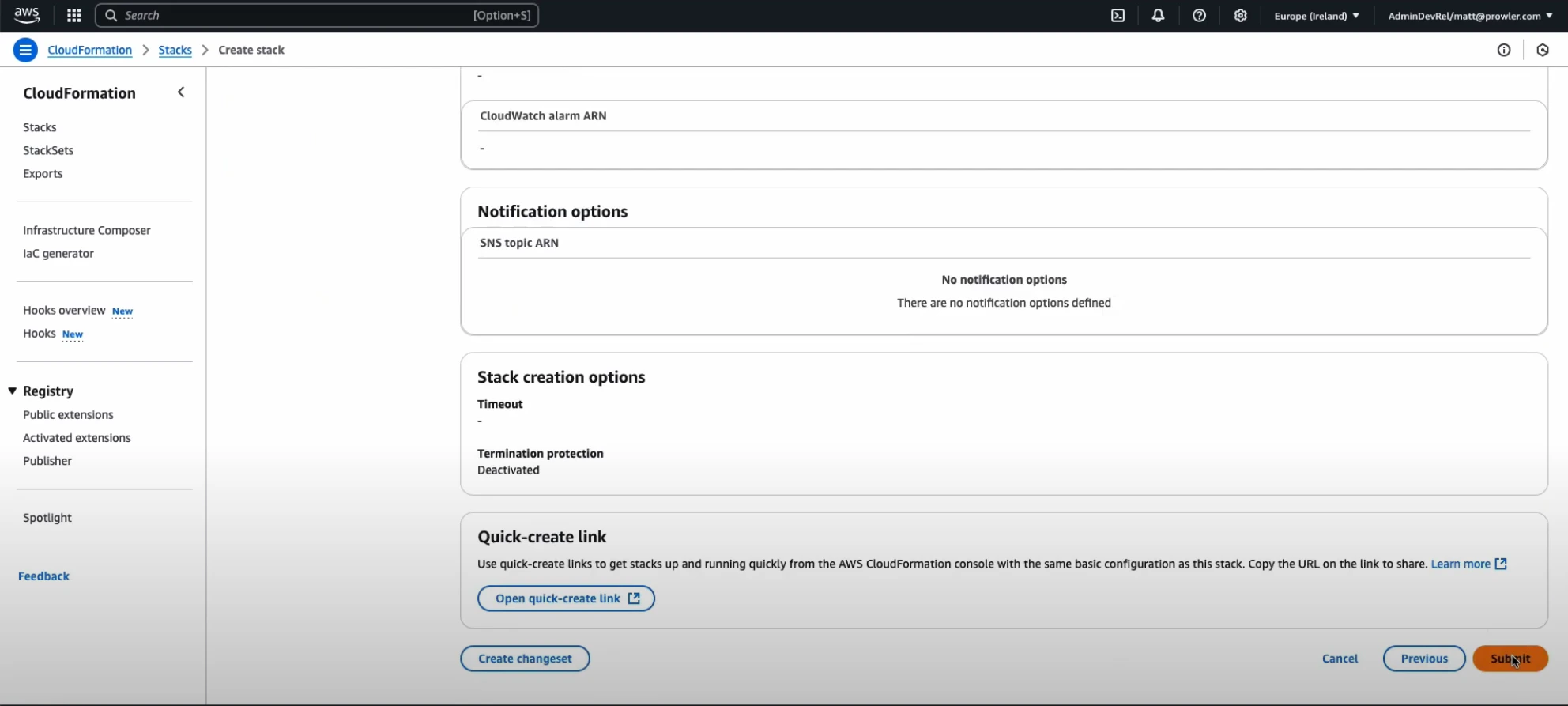
Configuring AWS SDK Default for Self-Hosted Prowler App
When self-hosting Prowler App with Docker Compose, the API and worker containers do not have AWS credentials by default. Selecting AWS SDK Default without configuring those credentials produces:sts:AssumeRole permission on the target role to both the api and worker services.
Option 1: Environment Variables in .env
Add the following keys to the .env file used by docker-compose.yml:
docker-compose.yml already loads .env into the api, worker, and worker-beat services, so boto3 will pick them up through the default credential chain.
Recreate the containers to apply the change. A plain docker compose restart will not reload values from a modified .env file — you must force-recreate:
Option 2: IAM Role (Host with Instance Metadata)
If you run Prowler App on an EC2 instance, ECS task, or EKS pod with an attached IAM role that can assume the scan role, no extra configuration is needed —boto3 resolves credentials through instance or task metadata automatically.
Trust Policy: Align IAMPrincipal With Your Identity
The Prowler scan role CloudFormation template restricts the trust policy with:
IAMPrincipal defaults to role/prowler*, which only allows IAM roles whose name starts with prowler. If the identity hosting the API and worker containers is anything else, the sts:AssumeRole call fails with AccessDenied even when the credentials themselves are valid.
Redeploy (or update) the CloudFormation stack with an IAMPrincipal that matches your identity:
| Your identity on the API/worker containers | IAMPrincipal value |
|---|---|
IAM user (for example prowler-app) | user/prowler-app |
IAM role whose name doesn’t start with prowler | role/<your-role-name> |
AccountId must also point to the account where that identity lives — the default is Prowler Cloud’s account and only applies when assuming from Prowler Cloud.
The same
External ID entered in the Prowler UI must match the ExternalId parameter used when deploying the CloudFormation stack. A mismatch produces AccessDenied on sts:AssumeRole, not InvalidClientTokenId.Credentials
- Long term credentials
- Short term credentials (Recommended)
-
Go to the AWS Console, open CloudShell

-
Run: